To Show My Computer Icon on Windows 8 Desktop,
1) Click on the Desktop in Metro UI (as shown below). This will bring the normal old desktop.

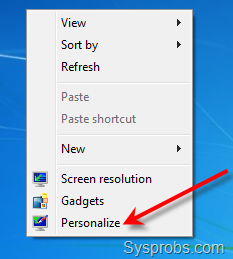
2) Right Click on the blank space in desktop, select Personalize.
3) In next screen Click on ‘Change desktop icons’. Here you can select the icons wanted to display in Windows 8 desktop. Select the tick box for ‘Computer’. Control Panel and Network icons also can be displayed on Windows 8 desktop by this method.
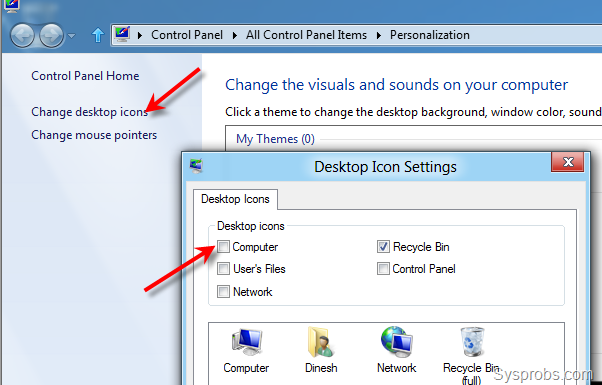
That’s it. Now you should have My computer icon on the desktop.

No comments:
Post a Comment